
AetherSX2 Emulator
STE RIDA AGENCYArcade
3.24.00 Reviews
- Version
- 1.0.0
- Installs
- 50.00K
- Age Rating
- Everyone
Screenshots
Our Review of AetherSX2 Emulator
 Analysis by Appyee
I approached AetherSX2 Emulator as a first-time user would: install it, understand what it is meant to do, and see how quickly it can become useful in an everyday gaming routine. This is a free arcade game-related app from STE RIDA AGENCY, presented as an emulator with save states, HD upscaling, cheat support, and gamepad compatibility. That combination makes it more practical than a simple pick-up-and-play arcade title, but it also means the first few minutes require more attention than opening a conventional mobile game.
The important distinction is that this is an emulator experience rather than a self-contained game library. You should think of it as a tool for running compatible games you already have the right to use, with controls and display options designed to make that experience more comfortable on Android. The app is listed for Everyone and is free, which lowers the barrier to trying it, although the setup process still depends on your own files, controller preferences, and phone hardware.
Getting from installation to a first playable session
I’d treat the first launch as a small setup task rather than a promise of instant play: have one compatible game file ready, then check that the emulator can find and open it. Keeping the test focused makes it easier to spot whether any snag comes from the file, the controls, or a setting. Once that first path is clear, the next section can look at how to make a short session feel worthwhile.
What to expect before opening a game
The store summary focuses on the features most people look for in an emulator: save states, HD upscaling, cheats, and gamepad support. In practice, those features serve different kinds of players. Save states are useful when you want to pause at an exact point instead of relying only on a title’s original save system. Upscaling is aimed at making older graphics look cleaner on a modern screen. Cheats are there for experimentation or accessibility, while gamepad support can make longer sessions feel much closer to playing on dedicated hardware.
That flexibility is also the main source of friction. A normal arcade download usually gives you a menu, a tutorial, and an immediate first round. Here, the meaningful first success is different: you need to reach a compatible game, make sure the controls respond, and confirm that saving works before investing time in a longer session. I found it more helpful to treat the first launch as a short configuration visit rather than expecting instant entertainment.
The app has an average rating of 3.2 from around 79 ratings, with four written reviews, and it has passed 50K+ installs. Those figures suggest that people are trying it, but they also tell me not to assume every phone will deliver the same experience. Emulator performance can vary with device hardware, game compatibility, graphics settings, and controller setup. I would keep expectations realistic until a short test session proves that your particular combination works well.
Its current version is 1.0.0, and it requires Android 8.0 or later. That makes checking your phone’s Android version a sensible first step, especially if you are helping someone else install it. The release date shown is Aug 5, 2026, so I would approach the app as a relatively early version and pay attention to how its menus and behavior feel on your device rather than assuming the polish of a mature, long-established emulator.
The first setup is easier when you prepare one game
Before opening the app, I recommend choosing one game for testing instead of trying to organize an entire collection. Have the legally obtained game file available, keep its location easy to find, and decide whether you want to begin with touch controls or a physical gamepad. This small amount of preparation removes the most common early confusion: wondering whether a problem comes from the emulator, the game file, or the controller.
On first launch, move through the interface slowly. Look for the area where games are discovered or opened, then choose the prepared file rather than adding several at once. If the app asks for access to a folder, select the location that contains your own game files. A focused test makes it easier to recognize whether the file appears correctly and whether the app can start it without unnecessary troubleshooting.
I would also begin with the default visual settings. HD upscaling sounds attractive, but it is not automatically the best first choice. A sharper image can make older artwork more pleasant to view, yet higher rendering demands may affect smoothness on some phones. Start the game at the basic configuration, confirm that it runs, and only then raise the visual setting. This is one of the most useful trade-offs in the app: image clarity matters, but stable play matters more.
Touch controls are a reasonable way to verify that everything works, but they may not be ideal for every arcade game. Buttons can feel crowded on a small screen, and fast combinations are harder when your fingers cover part of the display. If you already own a compatible gamepad, connecting it before a long session is worthwhile. The difference is especially noticeable in games that depend on repeated directional inputs or precise timing.
Your first successful action should be deliberately small
For a reassuring first session, I would launch the game, play only until the controls feel familiar, and create a save state at a safe moment. Then I would close or pause the session and load that state. This simple test confirms more than merely seeing a title screen: it checks that the game responds, that your input method is usable, and that the feature most likely to shape your routine is working as expected.
Save states are particularly valuable when your available play time is unpredictable. Imagine having ten minutes during a commute or while waiting for an appointment. Instead of searching for an in-game checkpoint, you can preserve a precise moment and return to it later. I would still use the original game’s normal save system when available, because relying on one temporary state for everything can become confusing if you overwrite it accidentally.
A practical habit is to use separate state slots for different purposes: one for a safe long-term position, another for experimenting, and another for testing a difficult section. The app’s support for save states makes this workflow possible, but the discipline is yours. Labeling or remembering what each slot represents prevents the common mistake of saving over progress you intended to keep.
Once the basic loop works, try HD upscaling for a short comparison rather than leaving it enabled automatically. Look at text, menus, and distant details, not only the overall sharpness. Some older graphics benefit greatly from a cleaner presentation, while others can look less natural when enlarged. If the game becomes less comfortable to play, return to the earlier setting; visual enhancement is optional, and it should never be treated as a requirement for a good session.
Why the main points of confusion happen
The biggest misunderstanding is expecting the app itself to behave like a ready-made arcade catalog. It does not replace the need for compatible games that you are allowed to use. If you install it and see an empty library, that does not automatically mean the app is broken. It may simply mean you have not yet directed it to a folder containing a suitable file. Keeping that distinction clear saves a lot of unnecessary reinstalling.
Another common confusion involves game compatibility. An emulator can support a format in principle while individual games still behave differently. One title may start cleanly, another may need a different graphics setting, and a third may not be a good match for your phone. I would test one known title first and avoid judging the whole app from a single difficult case.
Cheats also deserve a cautious approach. They can be enjoyable when you want to explore a game, bypass a frustrating section, or make a title more accessible. However, enabling several changes at once makes troubleshooting harder. If a game begins behaving strangely, turn off the latest cheat before changing unrelated settings. Testing one option at a time gives you a much clearer idea of what caused the result.
Controller problems can be equally misleading. If the game launches but inputs do not register correctly, check whether the issue affects every button or only a particular action. A complete lack of response points toward connection or mapping, while one misplaced command suggests a control-layout problem. For a first session, I would keep the default mapping until the game is confirmed playable, then adjust only the buttons that genuinely need changing.
It is also easy to confuse a sharper image with better performance. Upscaling changes presentation, not the underlying age of the game. If movement feels uneven after increasing the setting, the sensible response is to reduce the visual demand and retest. I prefer a steady, readable picture to a more ambitious image that makes timing-based arcade play uncomfortable.
How it fits into a normal day
My favorite use case for this kind of app is short, repeatable play rather than a complicated all-day setup. Suppose I have a quiet half hour in the evening and want to revisit one older game. I can open the emulator, load the prepared title, use a gamepad for comfort, and save at a clear stopping point. The next time, I do not need to replay the opening section just to reach the part I was practicing.
It can also suit someone who wants to compare different control styles. Start with touch input for a quick test, then switch to a gamepad for a longer session. That comparison helps you decide whether the app belongs on your regular device or is better kept for occasional use. The trade-off is convenience: touch controls are always close at hand, while a controller takes extra preparation but usually offers more precise feedback.
Cheat support gives the app another use beyond straightforward completion. You might use it to explore a level, test a character, or reduce repetition after you have already finished a game normally. I would keep a clean save state before experimenting, so the playful side does not interfere with ordinary progress. This separation is a small workflow improvement, but it makes the feature much less risky in practice.
Where it compares well with simpler alternatives
Compared with a typical mobile arcade game, this app offers deeper control over how you play. You are not limited to a fixed touch interface or a single presentation style. Save states can make older games more manageable, HD upscaling can improve the look on a modern display, and gamepad support can make the experience feel more deliberate.
The cost of that flexibility is ease of entry. A conventional arcade game usually explains itself inside the game and starts with content already arranged for you. Here, you need to understand files, controls, states, and settings. If your priority is an instant game with no configuration, a regular arcade download is the better choice. If your priority is revisiting compatible older games with adjustable controls and convenient stops, this emulator has a stronger case.
It also differs from a basic emulator that focuses only on launching games. The combination of visual adjustment, cheats, save states, and gamepad support gives you more ways to tailor a session. That does not mean every option should be enabled. In my experience, the app is at its best when you use only the features that solve a specific problem: a save state for limited time, a controller for precise input, or upscaling when the display genuinely benefits from it.
Who should try it, and who should skip it
I would recommend trying it if you already have compatible, legally obtained games and enjoy adjusting an experience until it feels right. It is also a good fit for players who dislike losing progress between short sessions, prefer a physical controller, or want to revisit older arcade-style games on an Android phone. The free price makes experimentation less risky, and the Everyone age rating keeps its presentation broadly accessible.
I would be more cautious if you want a polished, instant-play package with no setup. New users who are uncomfortable locating game files or changing control settings may find the first session more technical than expected. I would also skip it for now if your phone is below Android 8.0, since the app requires that minimum operating system. Players who only want modern mobile games may gain little from an emulator-focused tool.
Because the developer is STE RIDA AGENCY and the app is at version 1.0.0, I would approach it with a practical testing mindset. Install it, try one compatible title, confirm the controls and saving behavior, and decide from that real result. That is more useful than assuming the same settings will suit every game or device.
A sensible next step after the first session
Once one game works, build a simple routine instead of changing everything at once. Keep a small set of trusted files in an organized folder, use a permanent save state only for stable progress, and reserve another slot for experiments. Test graphics changes during a safe section, and adjust controller mapping only after you know which buttons feel wrong.
If you are sharing the phone with family members, the Everyone rating makes the app broadly approachable, but I would still explain that it is a tool and that the games are handled separately. Showing a new player how to load one title and return to a saved state is more helpful than handing over a collection of unexplained settings.
My final view is that AetherSX2 Emulator is most appealing as a flexible bridge between older arcade gaming and modern Android hardware. It is not the simplest route to immediate play, and the early version means I would verify everything on my own device. Still, when a compatible game loads correctly, the combination of save states, optional HD upscaling, cheats, and gamepad support gives me meaningful control over the experience. The best way to judge it is to start small: one game, default settings, one successful save, and only then deeper customization.
Verdict
Strengths of AetherSX2 Emulator
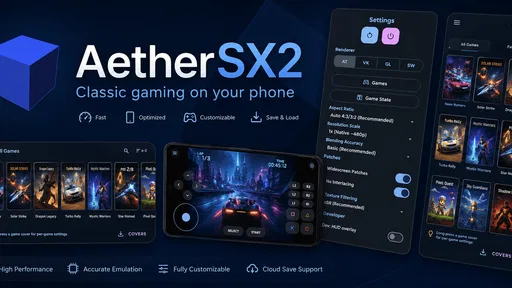
- Excellent performance on many mid-range and flagship Android devices.
- Supports save states for quickly saving and resuming gameplay.
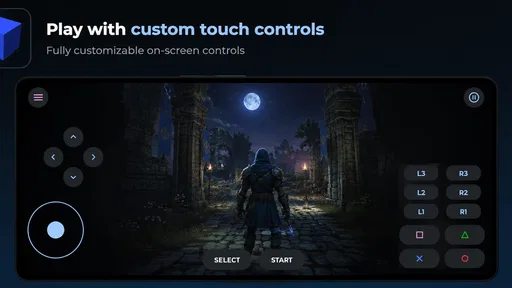
- Offers customizable touch controls and external controller support.
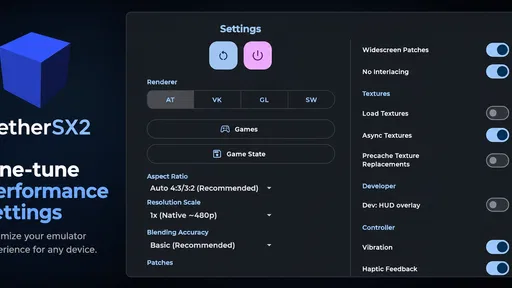
- Includes useful graphics enhancements such as texture filtering and widescreen options.
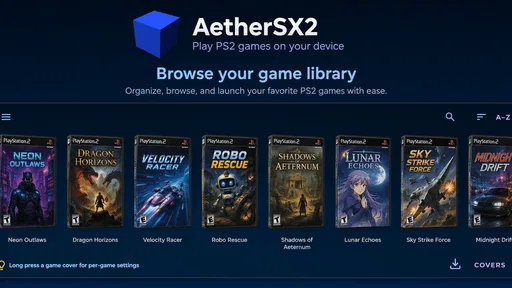
- Works with multiple game formats and lets users organize their own backups.
Limitations of AetherSX2 Emulator
- Requires legally dumped game files; it does not include games or BIOS files.
- Performance varies considerably between games and Android devices.
- Some titles may suffer from glitches, crashes, or incomplete compatibility.
- Advanced settings can be confusing for users unfamiliar with emulation.
- Development is discontinued, so newer Android versions may introduce issues.
Similar Picks in This Category
View All
Subway Surfers
SYBO Games4.6

Stickman Party 234 MiniGames
PlayMax Game Studio4.6

Subway Princess Runner
Ivy4.4

Temple Run
Imangi Studios4.2

Zombie Tsunami
Mobigame SAS4.6

Stack Ball - Crash Platforms
CASUAL AZUR GAMES4.5
Frequently Asked Questions
What is AetherSX2 Emulator and what can it do?
AetherSX2 is an Android emulator designed to run PlayStation 2 games on compatible smartphones and tablets. It provides features such as save states, memory-card support, customizable touch controls, external controller compatibility, graphics adjustments, and resolution scaling. Performance depends heavily on the device, the game being emulated, and the emulator settings, so results can range from smooth gameplay to noticeable slowdowns.
Is AetherSX2 Emulator legal and does it include PlayStation 2 games?
AetherSX2 does not include commercial PlayStation 2 games, BIOS files, or copyrighted game data. Users are expected to create and use backups from games and hardware they legally own, while also obtaining any required BIOS files through lawful means. The legality of emulation varies by country, particularly regarding game backups and BIOS extraction, so users should check local regulations before downloading files or using the emulator.
What Android device is recommended for running AetherSX2?
AetherSX2 generally works best on relatively modern Android devices with a powerful processor, strong GPU performance, and adequate cooling. A recent Snapdragon chipset is often preferred because graphics-driver compatibility can affect performance. Some games may run well on mid-range hardware, while demanding titles can require a flagship-level device. Available storage, Android version, RAM, and thermal throttling can also influence stability.
How do I improve game performance and graphics in AetherSX2?
Performance can often be improved by adjusting the internal resolution, renderer, frame-rate settings, and speed-related options. Lowering the resolution is usually the quickest way to reduce stuttering, while testing Vulkan and OpenGL can reveal which renderer works better on a particular device. Users should also enable game-specific settings when necessary, close background apps, and avoid aggressive enhancements if consistent gameplay is the priority.
Does AetherSX2 support controllers, save states, and multiplayer?
Yes, AetherSX2 supports customizable on-screen controls and can work with compatible Bluetooth, USB, or other external game controllers. It also includes save-state functionality alongside traditional in-game memory-card saves, which is useful for pausing progress or revisiting difficult sections. Multiplayer support may depend on the game and emulator configuration, and compatibility is not guaranteed for every local or network-based PlayStation 2 multiplayer feature.
Play our best games!


